Blog

Home Network Setup for Smooth TSports Live Streaming

Build a home network that streams TSports Live smoothly with this guide to router placement, Wi-Fi bands, wired connections, mesh systems, and match day priorities.

Rated 4.6/5 by 28k Users

Home Network Setup for Smooth TSports Live Streaming

Most streaming problems blamed on apps are actually home network problems wearing a disguise. The encouraging truth is that a few physical changes, made once, fix them for every app and every match that follows.

This guide walks through router placement, bands, cables and settings in plain language, ordered by impact.

It follows naturally from how streaming works: For the full breakdown, see How Sports Streaming Apps Work.

You can get the file and the full feature list from the TSports Live APK Download page.

Router Placement: The Free Upgrade

Routers radiate in all directions and hate obstacles. A router in the open, raised, and roughly central in the home outperforms the same router hidden in a cabinet behind the television.

Move yours before buying anything. Placement changes alone routinely double the speed measured at the sofa.

Placement rules that matter:

  • Open air, not a cabinet
  • Raised off the floor
  • Central in the home
  • Away from thick walls and metal

The Two Wi-Fi Bands, Used Properly

The 5 GHz band is faster and less crowded but fades through walls; 2.4 GHz travels further at lower speed. Televisions near the router belong on 5 GHz; distant rooms may honestly do better on 2.4.

Name the bands separately if your router allows it, so you choose deliberately instead of letting devices guess.

Ethernet: The Match Day Guarantee

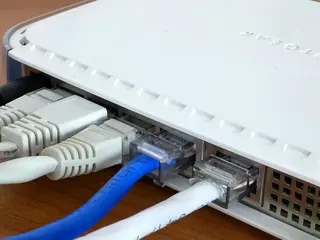
For a fixed television, nothing beats a cable. Ethernet removes interference, distance and neighbours from the equation entirely.

If running a cable is impractical, powerline adapters that send network through your home wiring are the respectable second choice.

Mesh Wi-Fi for Larger Homes

Mesh systems place several cooperating access points around the home, ending the dead zones single routers leave in far rooms.

For houses where the TV room sits far from any sensible router position, mesh is the real fix, not a stronger single router shouting louder.

Prioritising the Match

Many routers offer quality of service or device priority settings. Give the television or streaming device priority and live streams stop queuing behind downloads.

Schedule the household's heavy updates and backups outside match hours where you can. Prevention beats prioritisation. We go deeper on this in TSports Live Buffering and Playback Fixes Guide.

Restart and Update Rituals

Restart the router monthly and accept its firmware updates. Routers are computers; they accumulate the same cruft and the same fixes.

A restart an hour before a huge match is cheap insurance the whole household benefits from.

Testing Like You Mean It

Test speeds on the watching device, in the watching room, at watching time. Every other test describes a network you do not use.

Keep a note of the numbers before and after each change. Improvements you can measure are improvements you keep.

When to Upgrade the Plan

If a wired test at the router cannot reach the speeds live HD needs at peak hours, the plan itself is the ceiling, and no home equipment raises it.

Upgrade the line before the gadgets. Bandwidth first, boxes second. For the step-by-step side of this, see Best Free Sports Streaming Apps.

Wi-Fi Channel Congestion

In dense housing, neighbours' networks crowd the same channels. Modern routers choose channels automatically and usually choose well after a restart in a new position.

If evenings in a flat are uniquely bad, congestion is the likely story, and the 5 GHz band, with its shorter reach, suffers least from neighbours.

Guest Networks for Visitors

A guest network keeps visitors' devices off your main network and lets you limit their share during matches without an awkward conversation.

Set it up once, share it proudly, and protect the match quietly at the same time.

Keeping Cables and Kit Tidy

Label the cables behind the television once: router, TV, stick, sound. The next troubleshooting session, possibly mid match, will thank you.

Tidy kit is not vanity. It is the difference between a thirty second fix and a ten minute excavation.

Router Security Is Streaming Security

Change the router's default admin password and keep its firmware updated. A compromised router degrades everything and endangers far more than your streams.

Ten minutes of router hygiene protects the whole household's digital life, with smoother matches as a side effect.

Measuring Success

After your changes, run the same match time test for a week and compare with your notes from before. Most households see the improvement in the first big match.

If the numbers improved but the viewing did not, the bottleneck lives elsewhere, and your log now proves where not to look.

A Network That Disappears

The finished state is boredom: matches start, streams hold, and nobody in the house thinks about the network at all.

That boredom is the goal. Build the network once, properly, and every app you ever stream with inherits it.

Conclusion

A good home network is the invisible foundation of every smooth stream. Place the router well, wire the television, prioritise the match, and TSports Live stops being a networking test and goes back to being sport.

Next Recommended Reading:

because with the network built, the remaining fixes are quick app level ones.

Download APK
Arif Chowdhury

Reviewed by

Arif Chowdhury

Sports Streaming Reviewer

Arif covers cricket and football streaming apps, verifying live match playback, buffering and data use on real devices before any app is listed here.

More about Arif Chowdhury